What this actually is
Most mornings start the same way. You reach for your phone to check one thing, and forty minutes later you have read six things you did not plan to read and still do not know what your day looks like.
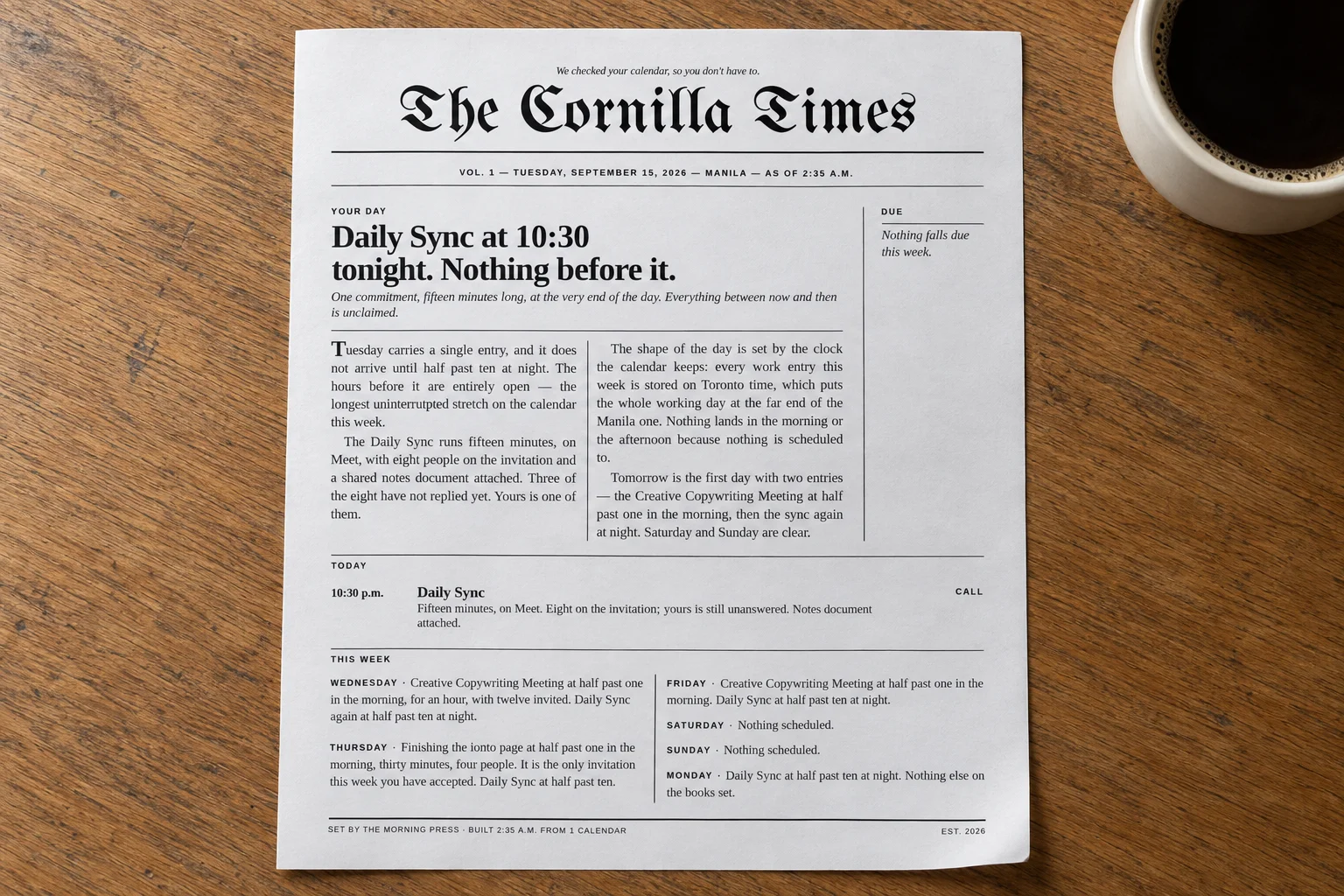
The Morning Press is a plugin that sits between your calendar and your first cup of coffee. Overnight, it reads your schedule, writes your day up as actual newspaper copy, lays it out as a single broadsheet page with your own masthead on top, and leaves it ready for you. You read one page. Then you are done, because a newspaper ends.
That last part is the whole idea. A feed cannot end. A page can. When you put the page down, you have finished reading, and the finishing is the feature.
It is worth being clear about what it is not. It is not a to-do app, it does not sync anything back to your calendar, and it does not run in the cloud watching your life. It reads, it writes one file, and it stops.
Why a page beats a notification
You already have a calendar. It already has all of this information in it. So why produce a second thing?
Because a calendar shows you boxes, and boxes are not the same as a day. Your calendar can tell you that you have a call at eleven. It cannot tell you that the four hours before it are the longest uninterrupted stretch you will get all week, or that the only genuinely clear day ahead is Sunday, or that the thing you keep pushing has now been pushed twice.
The Morning Press writes those things down, because it reads the whole week before it writes the first sentence. Open time is the most valuable information about your day and no calendar app ever surfaces it, because open time is literally an absence of boxes.
There is a second reason, and it is more personal. A page cannot notify you. It cannot show you a badge, suggest something else to read, or refresh while you are looking at it. Some users report that the point of the whole thing is the twenty minutes in the morning where they have read something useful and their phone has stayed face down.
If you own a printer, use it. Reading the edition as a PDF works perfectly well, and it is also the version most likely to end with you checking something else on the same screen. The paper version is the one that makes the habit stick.
What one page looks like
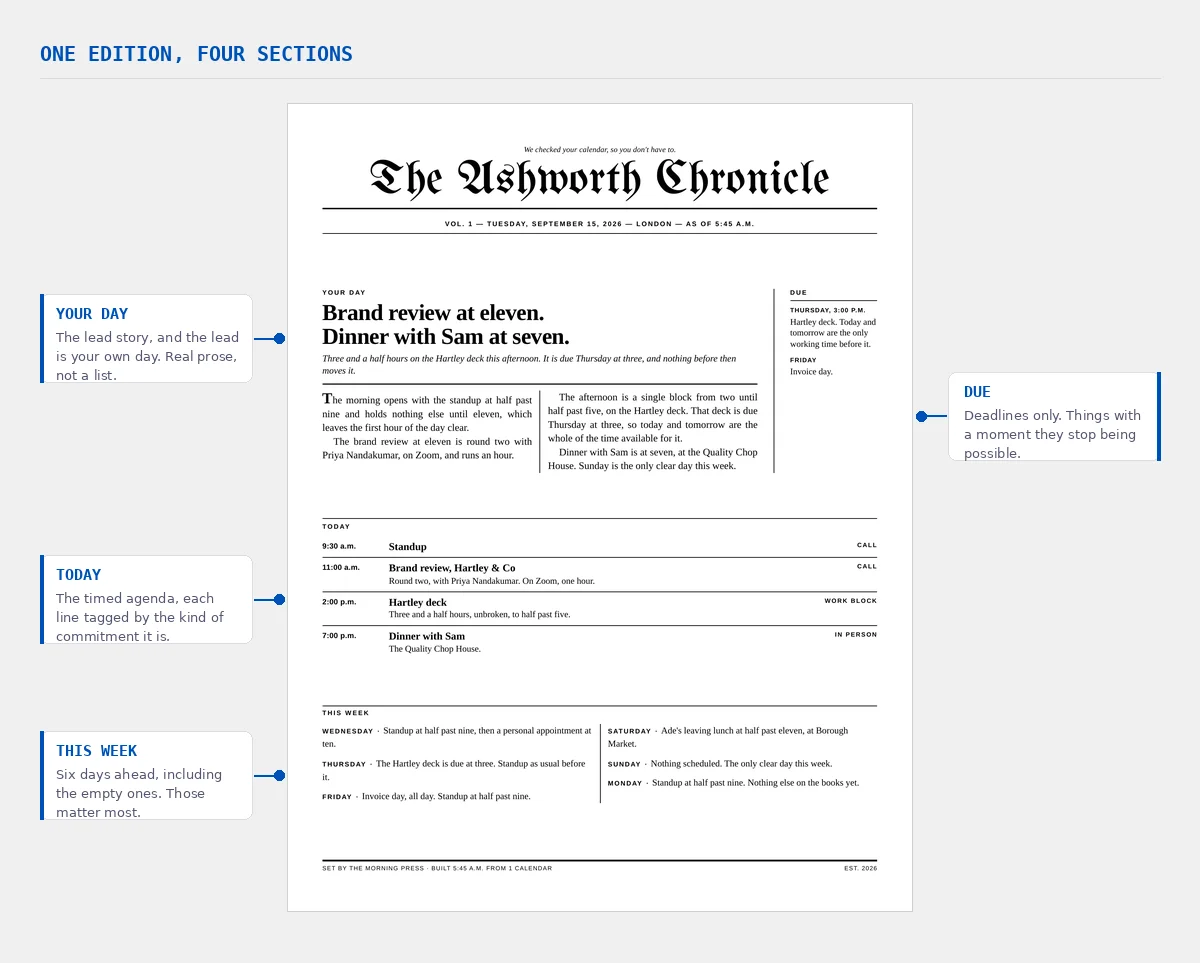
Every edition is one sheet, four sections, laid out like a real front page. Here is what each part does and why it exists.
The lead story, and the lead is your Tuesday. Two or three paragraphs of real prose with a headline that could only describe this one day. Not a list.
The timed agenda. Each line is tagged by the kind of commitment it is, so a call and a work block read differently at a glance.
Six days ahead in running prose, including the days with nothing on them. Those are usually the most useful lines on the page.
A narrow column beside the lead, carrying deadlines only. Things that have a moment where they stop being possible.
The lead story is the part that surprises people. It is genuinely written, not assembled. A calendar row that says 13:30 Send revised cut comes out the other side as a sentence: the main work block runs from half past ten to half past one, and the revised cut is due at the end of it. Same fact, and now it means something.
The editorial rules behind that live in a file inside the plugin called the house style. It covers how times are written, how a list of thirteen grocery items becomes a readable sentence with the tail collapsed into a count, and what the paper is never allowed to say. That file is the difference between this and every other daily digest.
What you need before you start
Less than you would expect. Here is the honest list.
| What | Required? | Notes |
|---|---|---|
| A Claude subscription | Yes | Any paid plan. The plugin runs on the subscription you already have. There is no key to buy and nothing metered on top. |
| A calendar | Yes | Any calendar app on earth. Two ways to connect it, covered in Section 06. |
| Claude Cowork or Claude Code | Yes | Plugins work in both. They are not used in Chat. |
| Google Chrome on your machine | No | If Chrome is installed, the plugin renders a PDF automatically. If not, you still get a finished page you can print. |
| A printer | No | Genuinely optional. See Section 07. |
| Any technical skill | No | You will not open a terminal, edit a file, or paste a key at any point. |
The thing most users worry about is the printer, so let us settle it early. You do not need one. The plugin always produces a finished, print ready page as a file in your own folder. A printer changes who presses print. It does not change a single word of the paper.
Nothing leaves your machine. Every edition is a file in your own folder. There is no upload, no account to create, and no server holding a copy of your calendar. The plugin reads your events, writes a page, and puts it on your disk. That is the entire data path.
Installing it
Plugins live under Customize in the Cowork sidebar, then Plugins. There are two ways in, depending on how you received The Morning Press.
If you were given a file
On the Plugins page, select the upload option and choose the plugin package you were sent. That is the whole process. The package is small, well under the 200 MB limit, so the upload finishes almost immediately.
If you were given a marketplace link
On the Plugins page, select Add marketplace and enter the URL you were given. The Morning Press then appears alongside any other plugins from that source, and you install it the same way you would install anything from the official catalog: select it, then click Install.
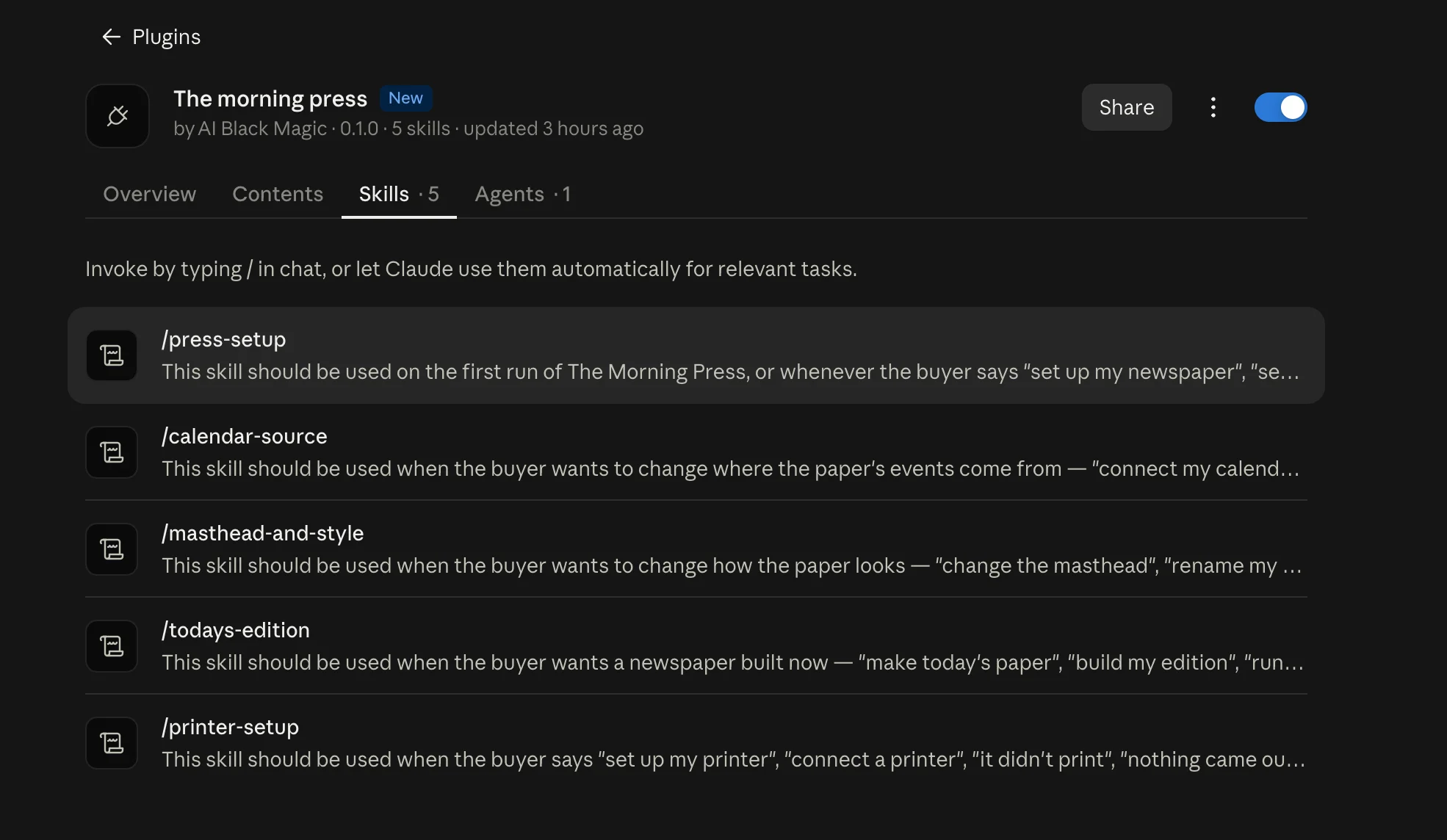
After it installs, open it. You will see its parts listed as tabs. There are five skills and one background agent, and you can enable or disable any of them individually, though for a first run you want them all on.
Your first conversation
Once it is installed, you do not configure anything in a settings panel. You talk to it. Type this:
This starts the setup interview. It takes about five minutes and most of that is choosing what to call your paper, which is the fun part.
It will ask you a handful of things, in small batches rather than one long form. Here is what each answer actually controls, so you can decide in advance rather than on the spot.
The name of your paper
This is the masthead across the top. Most users go with their surname, so The Cornilla Times, The Alvarez Chronicle, and so on. Some use the household, the street they live on, or the name of their business. There is no wrong answer and you can change it later by saying "rename my paper".
You also pick a strapline, which is the small italic line above the masthead. The default is We checked your calendar, so you don't have to. Writing your own makes the paper feel more like yours, and it takes ten seconds.
The masthead style
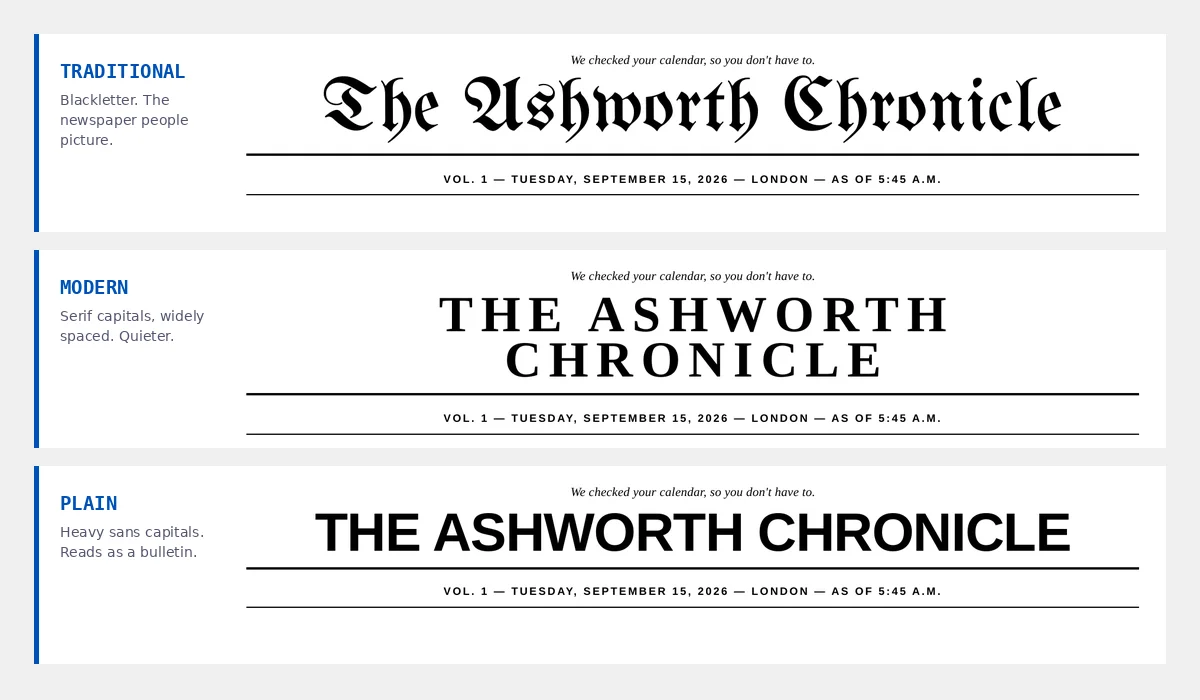
Three styles ship with the plugin, and rather than describing them, the setup builds a real sample of each with your own paper name on it and shows you all three. You pick by looking.
Blackletter. The newspaper people picture when they hear the word newspaper. This is the one most users choose.
Serif capitals, widely spaced. Quieter, and it reads as a broadsheet without shouting about it.
Heavy sans capitals. Reads as a bulletin rather than a newspaper. Some users want exactly that.
Advanced, and entirely optional. You can drop a font file into the plugin's assets folder and every edition will use it instead.
All three render identically on every machine, online or off, because the fonts travel with the plugin rather than being downloaded when the page opens. Your paper will look like the samples you were shown.
Paper size and wake time
Letter if you are in the US, Canada, the Philippines, or Mexico. A4 almost everywhere else. Get this right, because the wrong size is the most common reason a masthead prints clipped at the top.
Wake time is the anchor for everything else. The edition is built one hour before it by default, so the paper is finished and current by the time you pick it up rather than being eight hours stale.
Connecting your calendar, two ways
This is the only part where users have a real choice to make, and both options produce a byte for byte identical newspaper. The difference is how the events arrive.
Option one: connect the calendar directly
If you have a calendar connected to Claude, the plugin fetches your events itself, every morning, with no work from you. It asks which calendars to include, and you should be picky here. A holiday feed or a birthdays calendar will flood your agenda with all day entries and make the page worse. One or two calendars is usually right.
Option two: export a file
This works with every calendar application that exists, connected or not. You export an .ics file and drop it into the plugin's inbox folder. From Google Calendar, the cleanest route is a single calendar export: find the calendar under My calendars, hover over it, click More, then Settings and sharing, and under Calendar settings click Export calendar. That gives you one .ics file, not zipped.
There is also a whole account export under Settings, then Import & export, then Export. That one gives you a .zip containing an .ics for every calendar you own, which you then have to unzip. For most users the single calendar route is less work. Apple Calendar, Outlook, Notion Calendar, and Fastmail all have an equivalent export, and the setup will walk you through yours.
An export is a snapshot. A paper built from a three week old file is a three week old paper. The plugin will say so on the front page rather than pretending, but re-exporting is your job. If that sounds like something you will forget, connect the calendar instead.
The three levels
What happens at the end depends entirely on what is on your machine, and the plugin works out which level you are on by itself. Nobody has to configure this.
| Level 0 | Level 1 | Level 2 | |
|---|---|---|---|
| Requires | Nothing at all | Chrome installed | Chrome plus a printer |
| The newspaper | Identical | Identical | Identical |
| You get | A finished page file | The same, plus a PDF | The same, and it prints |
| You do | Open it, press print | Open the PDF, press print | Pick it up |
Read the second row again, because it is the important one. The newspaper is the same at every level. The levels only change who presses print. A user at level 0 with no printer and no Chrome is not getting a degraded product, they are getting the same page and pressing one more button.
Every edition lands in a dated folder inside your own workspace, so you also get an archive without doing anything. Old editions are cleaned up automatically after thirty days, and today's is never touched.
Privacy, and what the paper will never print
A newspaper on a kitchen counter is a public document. Anyone walking past reads the headline. That changes what belongs on it, and the plugin takes this seriously enough to ask you about it during setup.
You give it a list of words. Any event whose title matches keeps its time on the page and gets tagged as personal, with no title and no detail, anywhere. Not in the lead story, not in the week ahead, not in the deadlines column. The day still makes sense because the time is there. Nobody reading over your shoulder learns what it was.
Most users put medical appointments, therapy, and anything involving another person's private business on that list. It takes one sentence during setup and you can add to it any time by saying "keep therapy private" or similar.
The rule that matters most: the plugin never invents anything. Every time, name, place, and number on the page comes from your calendar. If your calendar does not say where dinner is, the paper does not say where dinner is. If a detail is missing, the sentence is written without it rather than around a guess.
That rule exists for a specific reason. Newspaper typography makes people believe what they read. Set a wrong reservation time in a serif under a masthead and you will act on it without checking. That is exactly why this format is worth building and exactly why an invented detail would be worse here than in an ordinary chat reply.
Making it run every morning
Up to now everything happens when you ask for it. Say "make today's paper" and you get one. That alone is useful, but it is not the point. The point is waking up to something you did not have to ask for.
At the end of setup, the plugin offers to create one scheduled task. It runs daily, an hour before your wake time, in your own timezone. It reads the calendar, writes that morning's edition, and stops.
This is the one step where you have to do something, so do not skip it. Scheduled tasks run in the cloud by default, and a cloud task cannot see your folder at all. When the plugin creates the task, you will be asked to approve it on your own computer. Approve it. If you do not, the task will fire perfectly on time every morning and find nothing to write to.
There is one more honest limit here and it is worth understanding rather than being surprised by. Once approved, the task builds your edition whether or not your laptop is open, because the building happens in the cloud. The printing is different. Printing needs your machine awake and on the same network as the printer. No setting changes that, because that is simply how printers work. If you want paper waiting for you at six in the morning, the machine stays awake overnight.
Users who do not want to leave a laptop running usually settle into a rhythm where the edition is built overnight and they press print when they sit down. It takes two seconds and it works on any machine.
When something looks wrong
You do not diagnose anything yourself. You describe what you are seeing in plain words and the plugin routes it. These phrases all land somewhere useful:
"my paper is missing events"Usually a calendar that was not included, an all day event being filtered out, or an export that predates the event.
"it didn't print"Almost always a sleeping machine, a sleeping printer, or a print queue that paused itself after an earlier failure and never resumed.
"the text is too small"Adjustable, in small steps. Past a certain point a busy day stops fitting on one sheet, and it will tell you that.
"change the masthead"Rebuilds samples so you can look before committing.
"my paper is out of date"You are on the file route and the export needs refreshing.
One behaviour will look like a bug the first time and is not. If you have a quiet day, you get a short paper that says so. It will print a line like Nothing scheduled. The only clear day this week. and leave it at that.
That is correct. The plugin is built to refuse to pad. Filling a page with invented filler would make a quiet Tuesday look busy, which is the opposite of useful. A four line edition that tells you the truth about a quiet day is a good edition.
What it will not do
Every tool should tell you its limits before you find them yourself at six in the morning. Here are the real ones.
It will not read your email
This version reads your calendar and nothing else. No inbox, no messages, no documents. That is a deliberate starting point rather than an oversight.
It will not print from a sleeping laptop
Covered above, and worth repeating because it is the single most common surprise. The edition gets built. The printing waits for an awake machine.
It will not pad a quiet day
A day with two things on it produces a short paper. If you want a full page every morning regardless of what is on it, this is the wrong tool.
It will not change anything in your calendar
It reads. It never writes back, never accepts an invitation for you, never moves anything. Your calendar ends the day exactly as it started.
Start with one edition
The fastest way to understand any of this is to hold one. Install the plugin, spend five minutes on setup, and then say "make today's paper" before you bother scheduling anything. Look at what comes out. Read the lead story about your own Tuesday and see whether it tells you something your calendar did not.
If it does, schedule the morning run and approve it on your machine, and then stop thinking about it. That is the intended end state: a thing that quietly produces one page a day and never asks you for attention again.
If it does not, you have lost five minutes and learned something about how your week is actually shaped, which is not the worst outcome either.
One last thought worth sitting with. When users describe what they like about this, they rarely mention the writing or the layout. They mention the phone staying face down. The paper is not really competing with your calendar app. It is competing with the first twenty minutes of scrolling, and it wins that fight by being finishable.
Your first three commands, in order: "set up my newspaper" to configure it, "make today's paper" to see one immediately, and "schedule my paper" if you want it waiting for you tomorrow. Everything else is optional.